Go to TrueCommunity → Mail.
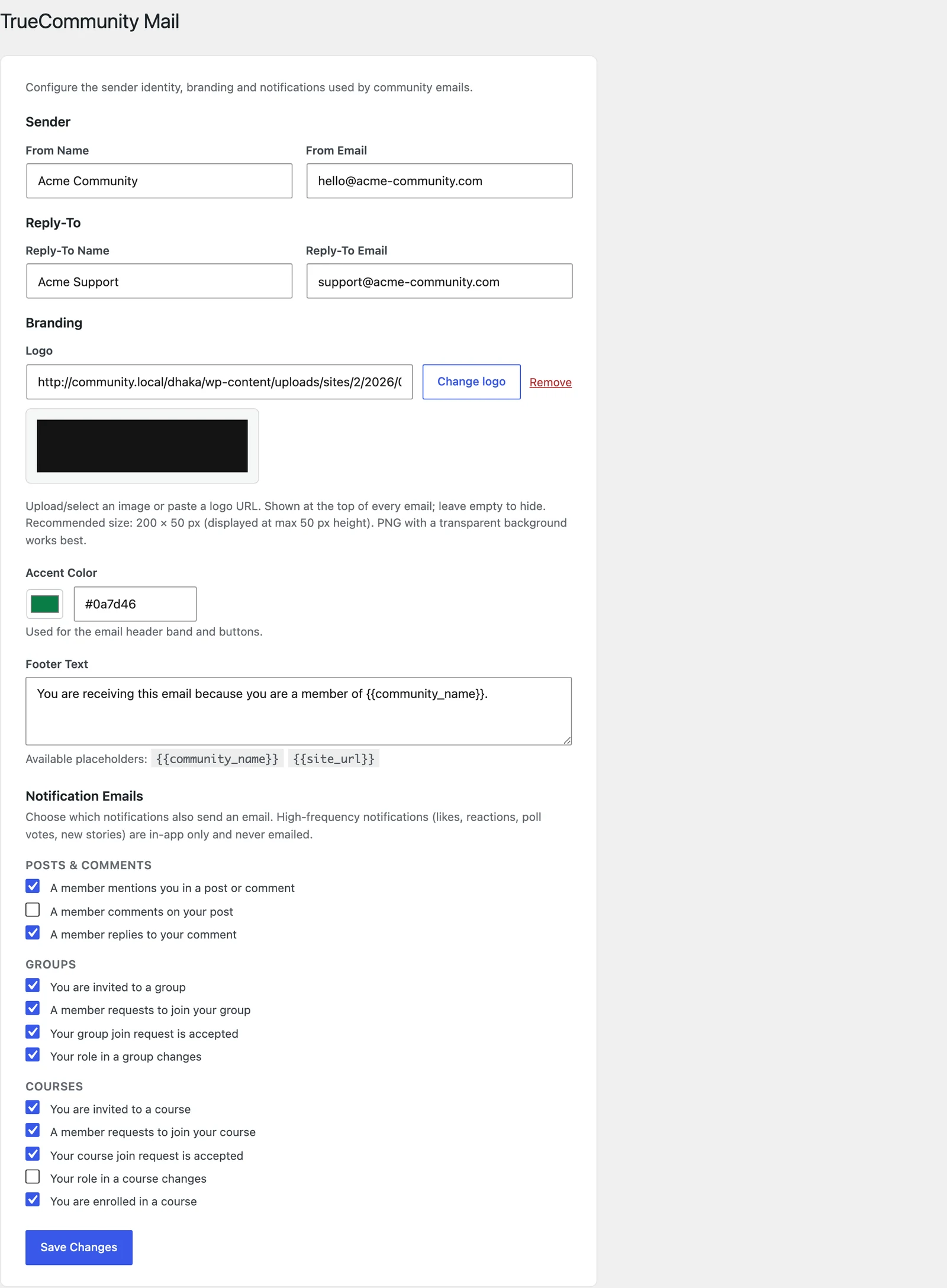
Sender #
- From Name — who the email is from, for example “Acme Community”.
- From Email — the address it is sent from, for example
[email protected].
Reply-To #
Where replies go when a member clicks “Reply”. Use a real inbox you read, like [email protected].
Branding #
- Logo — shown at the top of every email. Upload one, pick one from the Media Library, or paste a link. Best size: 200 × 50 px, transparent PNG. Leave empty to hide it.
- Accent Color — used for the email header band and buttons.
- Footer Text — the small text at the bottom of every email. You can use two placeholders:
| Placeholder | Becomes |
|---|---|
{{community_name}} | Your community name |
{{site_url}} | Your website address |
Notification Emails #
Tick the events that should also send an email. Members always get the in-app notification; these switches only control email.
| Group | Events |
|---|---|
| Posts & Comments | Someone mentions you · Someone comments on your post · Someone replies to your comment |
| Groups | You are invited · Someone asks to join your group · Your join request is accepted · Your role changes |
| Courses | You are invited · Someone asks to join your course · Your request is accepted · Your role changes · You are enrolled |
Good to know: Busy events — likes, reactions, poll votes and new posts — are in-app only. They never send email, so members are not flooded.
Tip: Emails are sent in the background after the page loads, so they never slow your site down. For reliable delivery, we recommend an SMTP plugin such as WP Mail SMTP.


