Open your course and click the Members tab.
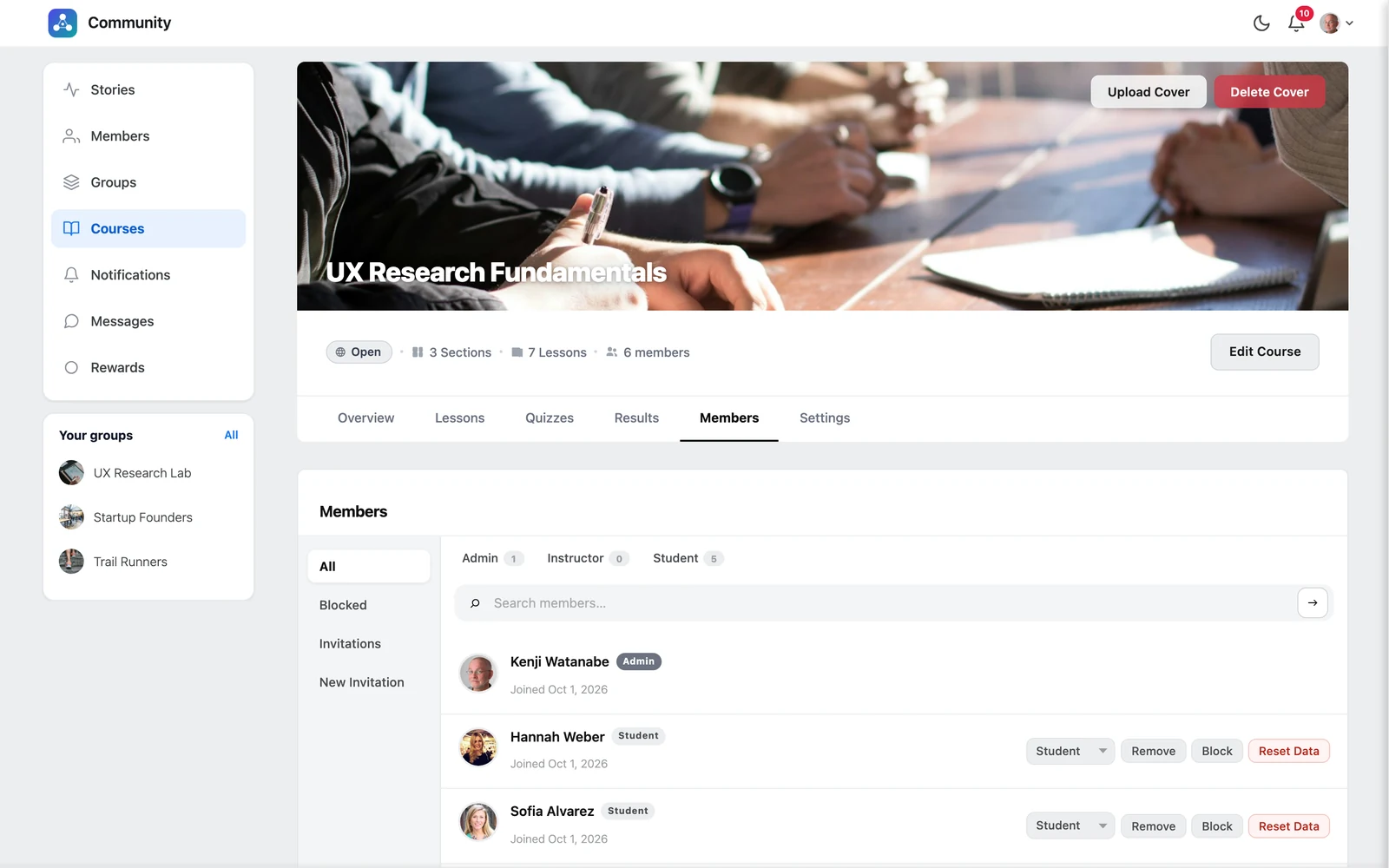
Course roles #
| Role | What they can do |
|---|---|
| Admin | Manage the course: content, quizzes, settings and members |
| Instructor | Help teach the course; shown as an instructor on the Overview |
| Student | Take the course |
Invite students #
- Click New Invitation.
- On the Users tab, search for a person and choose a Course role.
- Click Send invitation. They get an email and a notification, and see Accept Invitation on the course.
Enroll a whole group #
- Click New Invitation and open the Group tab.
- Choose one or more groups and a role.
- Click Enroll group members.
All current members of those groups are enrolled — and anyone who joins those groups later is enrolled automatically.
Tip: This is the easiest way to run cohorts: create a group per cohort and link it to the course once.
Requests, invitations and blocked students #
| Section | What you can do |
|---|---|
| Join Requests | Accept or Reject students who asked to join a private course |
| Invitations | See or Cancel invitations not yet accepted |
| Blocked | Unblock students you blocked |
Next to each member you can Change role, Remove them, or Block them from the course.
Pro feature: Pro adds a Reset Data button to start a student’s progress over. See Reset a student’s progress.


