
Pro feature: This page needs TrueCommunity Pro with the Gamification module turned on.
Go to TrueCommunity → Gamification and open the Badges tab.
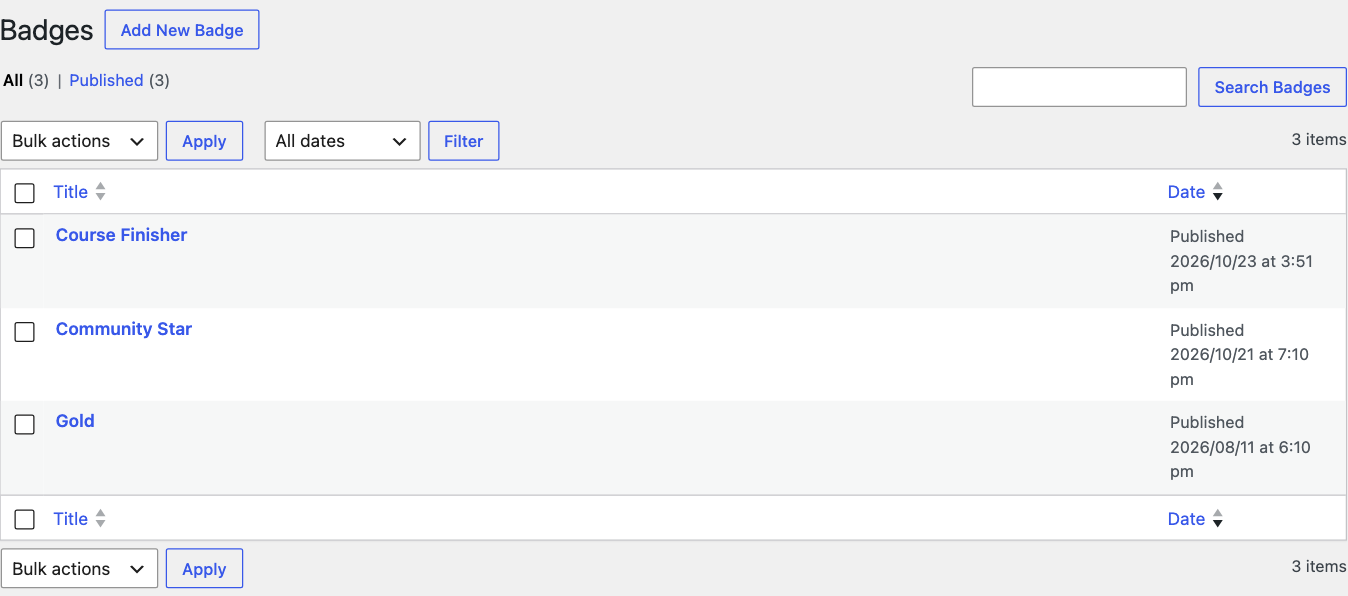
The list shows every badge. Click Add New Badge to create one.
Set up the badge #
- Enter the badge name as the title, and a short description in the editor.
- Optional: add a picture with Set badge image in the sidebar.
- Fill in Badge settings:
| Field | What it does |
|---|---|
| Icon | An emoji shown when the badge has no image. |
| Reward | Points paid once, when a member earns the badge. Use 0 if the badge itself is the prize. |
| Secret badge | Hides the badge until someone earns it, for a nice surprise. |

Decide how it is earned #
Under Earn this badge if… there are two boxes:
- ALL of these must happen: the member must do every activity in this box.
- ANY one of these happens: one activity from this box is enough.
The badge is given when everything in the first box is done, or any one thing in the second box. A box with nothing in it is skipped. Each box takes up to 3 conditions.
For each condition, pick an activity in What must happen?. The list shows the activities from the Activities tab, and each already says where it counts. Click + Add condition for more, then Publish.
Examples #
| Badge | Conditions |
|---|---|
| Hello World | ALL: Published a post |
| Social Starter | ALL: Published a post and Left a comment and Joined a group |
| Graduate | ANY: Finished Design 101 or Finished Design 201 (two activities, each applied to one course) |
| Quiz Ace | ALL: Scored 100% on a quiz |
Add a reward to a badge #
The Perks for earners box below the editor lists the rewards this badge gives. Click + Add reward to give earners a coupon, a course place or a group place. See Rewards.
When a member earns it #
- The badge is given automatically, and its points are added to the member’s balance.
- Any reward attached to the badge is given.
- The member gets a notification, if badge notifications are on in Settings.
- The badge shows as earned, with the date, on their Rewards page.
To see or take back a badge, use Badge Participants.


