Pro feature: This page needs TrueCommunity Pro.
Every lesson and topic has its own settings. Open the Lessons tab, click the ⋮ menu on a lesson (or topic) and choose Settings. Change what you need and click Save Settings.
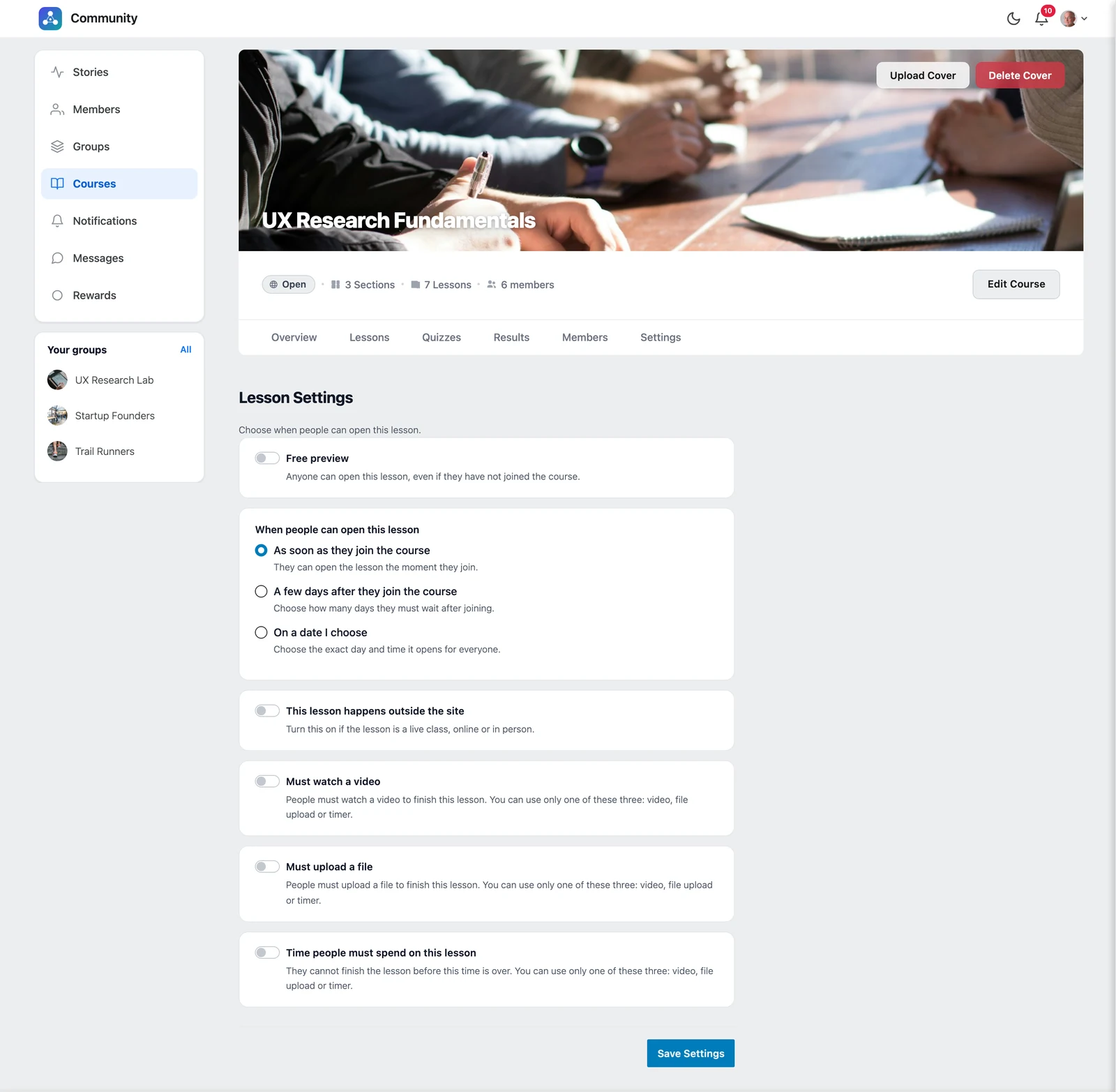
Free preview #
Turn on Free preview to let anyone open this lesson, even if they have not joined the course. Perfect for a sample lesson that sells the course.
When people can open this lesson (drip content) #
| Option | When it opens |
|---|---|
| As soon as they join the course | Right away (default) |
| A few days after they join the course | Choose how many days they must wait after joining |
| On a date I choose | The exact day and time it opens for everyone |
Until then, students see “Not available yet” and the date it opens.
This lesson happens outside the site (live classes) #
Turn this on when the lesson is a live class. Then choose Where it happens:
- Online, on a video call — like Zoom or Google Meet
- In person, at a real place
And choose if attendance matters:
- They can go on with the course without any confirmation
- A manager must confirm they came — students cannot continue until you mark them
To mark attendance, open the lesson and click Manage attendance. Tick Attended next to each student who came. Use the search box to find students fast.
Finish rules: video, file upload or timer #
You can add one of these three rules to a lesson or topic.
Must watch a video #
Students must watch the whole video to finish the lesson.
| Setting | What it does |
|---|---|
| Video link | A YouTube or Vimeo link, or a link to your own video file |
| Where to show the video | Before the lesson steps (the rest stays locked until they watch it), or after all the steps are done |
| Finish the lesson automatically | Mark the lesson done when the video ends, so students do not need to click anything. You can add a short wait in seconds. |
| Start the video automatically | The video starts on its own, without sound |
| Show the player buttons | Play, pause, volume and full screen |
| Pause when they leave the tab | The video stops if they switch tabs |
| Continue from where they stopped | Next time, the video starts from the same spot |
Must upload a file #
Students must upload a file — homework, a worksheet, a project — to finish the lesson.
| Setting | What it does |
|---|---|
| Allowed file types | For example pdf, docx, zip. Leave empty for all normal types. |
| Maximum file size | For example 300M or 2G. A number alone means MB. |
| Who approves the files | Accept every file automatically, or A manager approves each file |
| How many files they can upload | The limit per student |
| Let them delete a file | Students can remove a file before it is approved |
See Review assignments for how to approve files.
Time people must spend on this lesson #
Set hours, minutes and seconds. Students cannot finish the lesson before the time is over. A Time remaining counter is shown, and it pauses when they leave the page.
Points for completing #
When Gamification is on, you can give points the first time a student finishes this lesson. Use 0 to give nothing.


