Skip to content

TrueCommunity

Community, courses and messages inside your own WordPress site.

  • Home
  • Pricing
  • Docs
  • Contact
  • Log in
  • Download

Getting Started

5
  • What is TrueCommunity?
  • Install TrueCommunity
  • Install TrueCommunity Pro and activate your license
  • Quick setup: launch your community in 5 minutes
  • Find your way around the community

Settings

5
  • Name your community and change its URL
  • General settings: logos and upload limits
  • Turn features on or off (Modules)
  • Email settings and notification emails
  • Migrate existing users

Activity Feed

5
  • Create a post
  • Create a poll
  • Like, react and comment
  • Bookmarks: save posts for later
  • Edit, delete, share and search posts

Members & Profiles

3
  • Your profile
  • Find members and add friends
  • Block a member

Groups

4
  • Groups explained: public, private and locked
  • Create and edit a group
  • Join, post in and leave a group
  • Manage group members and roles

Courses

6
  • Create a course
  • Add sections and lessons
  • Create quizzes
  • Enroll students and manage course members
  • Take a course (student guide)
  • See quiz results

Messages & Notifications

2
  • Send private messages
  • Notifications

Pro: Advanced Courses

8
  • Course settings
  • Add topics inside lessons
  • Lesson and topic rules
  • Review assignments
  • Challenge exam: let students test out
  • Sell a course
  • Reset a student’s progress
  • Quiz submission details

Pro: Gamification

8
  • Gamification overview and setup
  • Tracked activities
  • Ranks
  • Badges
  • Challenges
  • Manage member points
  • Gamification settings
  • The Rewards page (member guide)

FAQ & Troubleshooting

2
  • Frequently asked questions
  • Troubleshooting
View Categories
  • Home
  • Docs
  • Groups
  • Create and edit a group

Create and edit a group

< 1 min read

0:00 / 0:45
  • View as Markdown Open this page as plain Markdown (opens in a new tab)
  • Open in ChatGPT Ask questions about this page (opens in a new tab)
  • Open in Claude Ask questions about this page (opens in a new tab)
  • Open in Google AI Studio Ask questions about this page (Google account required) (opens in a new tab)

Good to know: Creating groups is for site administrators. The Create Group button only shows for them.

Create a group #

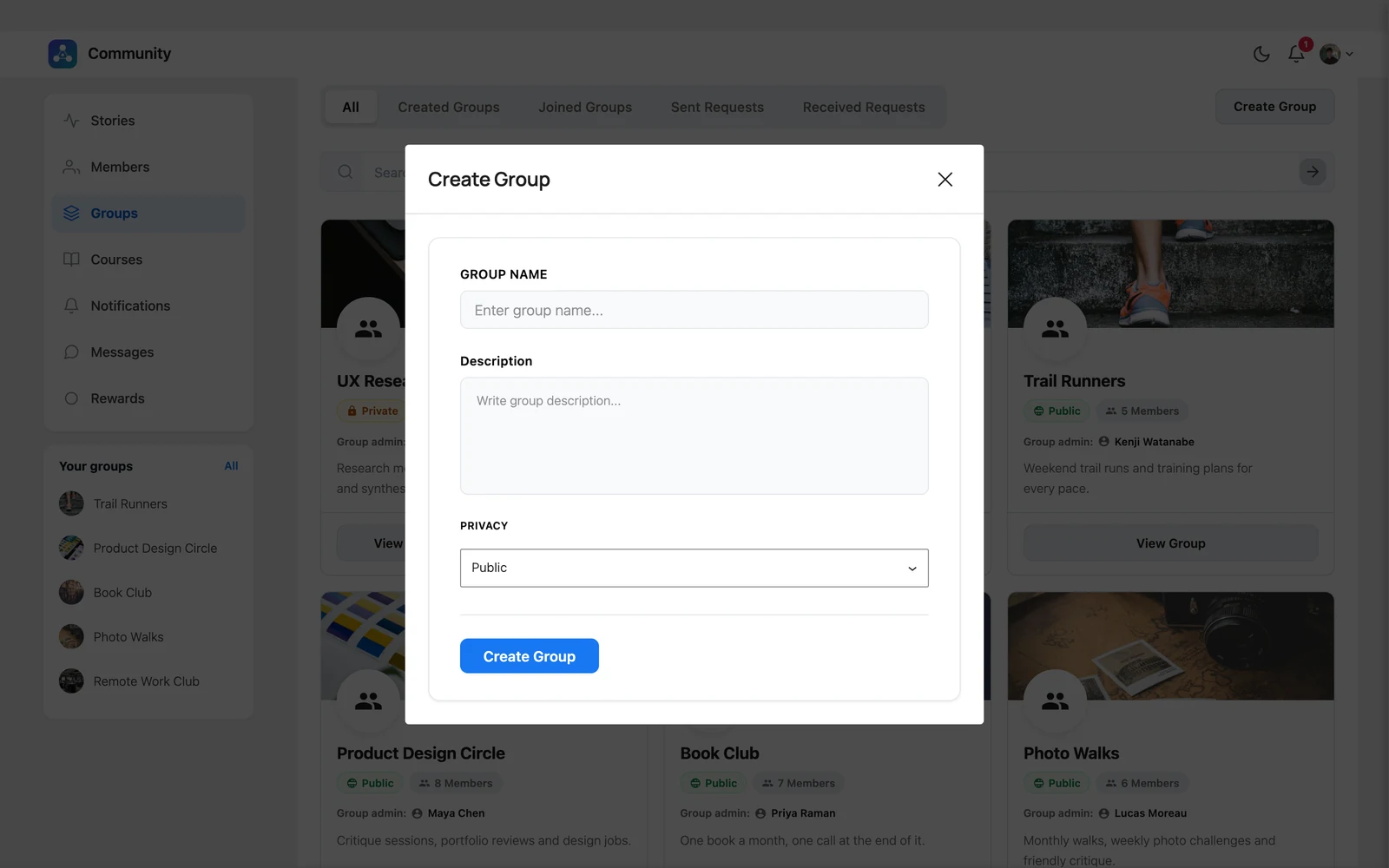
  1. Go to Groups.
  2. Click Create Group at the top right.
  3. Enter a Group Name and a Description.
  4. Choose the Privacy: Public, Private or Locked. See Groups explained.
  5. Click Create Group.
The Create Group window

You become the group’s admin.

Add a cover photo #

Open the group and click Upload Cover in the top-right corner of the cover area. Use Delete Cover to remove it. Group admins and moderators can change the cover.

Edit or delete a group #

  • On the group page, click Edit Group to change the name, description or privacy.
  • On the Groups page, click the ⋮ menu on a group card and choose Edit or Delete.

Important: Deleting a group cannot be undone.

Updated on October 9, 2026

What are your Feelings

  • Happy
  • Normal
  • Sad

Share This Article :

  • Facebook
  • X
  • LinkedIn
  • Pinterest
Groups explained: public, private and lockedJoin, post in and leave a group
Table of Contents
  • Create a group
  • Add a cover photo
  • Edit or delete a group
  • Features
  • Pricing
  • Contact
  • Privacy
  • Terms
  • Refunds

© 2026 TrueCommunity