Good to know: Creating courses is for site administrators. The Add New Course button only shows for them.
Create a course #
- Click Courses in the left menu.
- Click Add New Course at the top right.
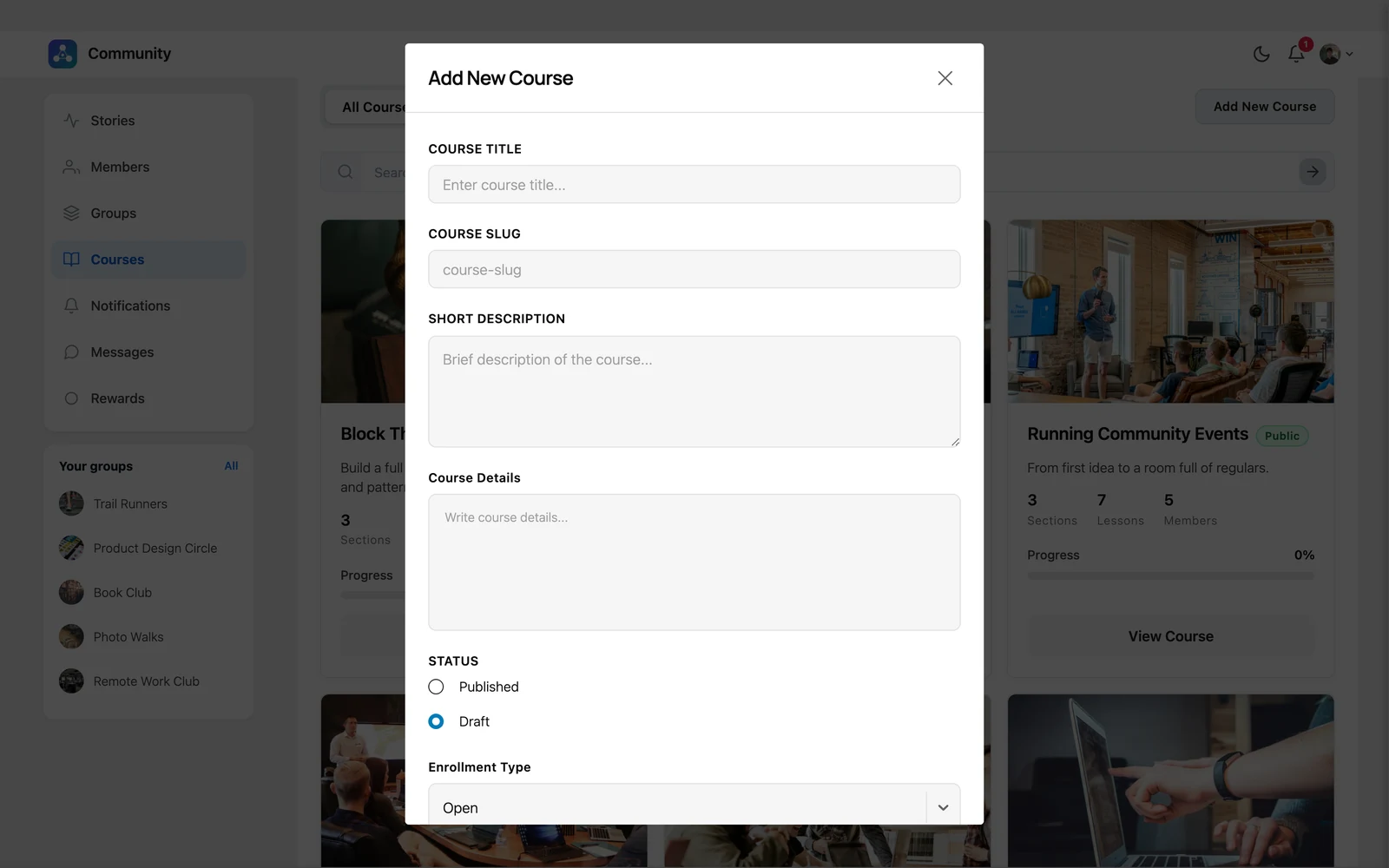
- Fill in the form:
| Field | What to enter |
|---|---|
| Course Title | The name of the course. |
| Course Slug | The last part of the course address. Filled in for you from the title. |
| Short Description | One or two lines shown on the course card. |
| Course Details | The full description, shown on the Overview tab. |
| Thumbnail | The course image. Click Upload Thumbnail. |
| Status | Published (visible) or Draft (hidden while you work on it). |
| Enrollment Type | Who can join — see the table below. |
- Click Create Course.
Enrollment types #
| Type | How students join |
|---|---|
| Open | Anyone clicks Enroll and starts right away. |
| Private | Students click Request to Enroll. A course admin approves each request. |
| Locked | Invitation only. Students cannot ask to join. |
Pro feature: With Pro you can also sell a private course. See Sell a course.
Edit the course #
Open the course and click Edit Course to change any of the fields above. Click Upload Cover to add a wide cover image to the top of the course page.


