Share this page with your students.
Join a course #
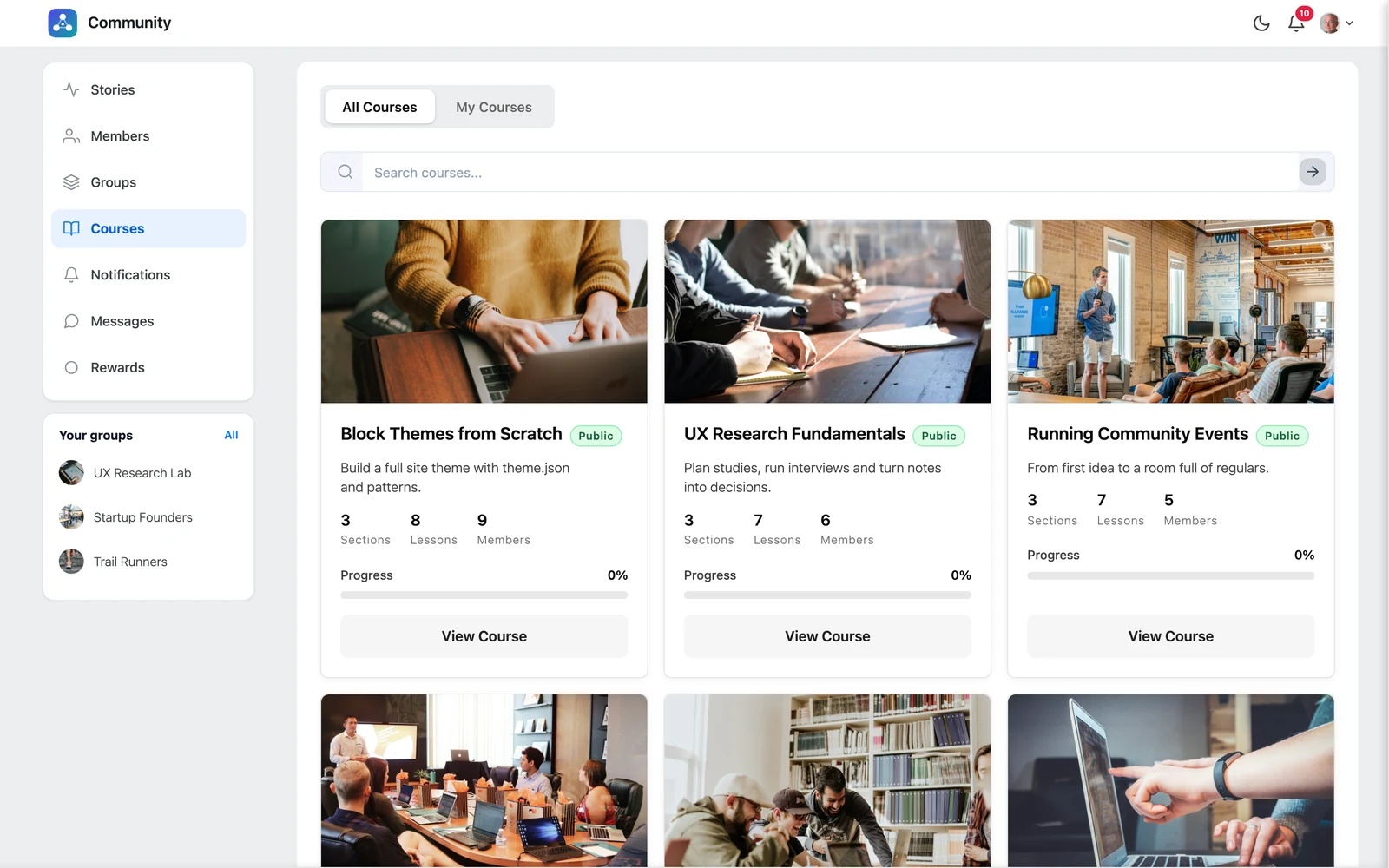
Open Courses in the left menu and click a course. Depending on the course, you see:
- Enroll — click it and start right away
- Request to Enroll — an admin needs to approve you. You get access when they do.
- Accept Invitation — you were invited; click to join
My Courses shows the courses you joined.
Follow your progress #
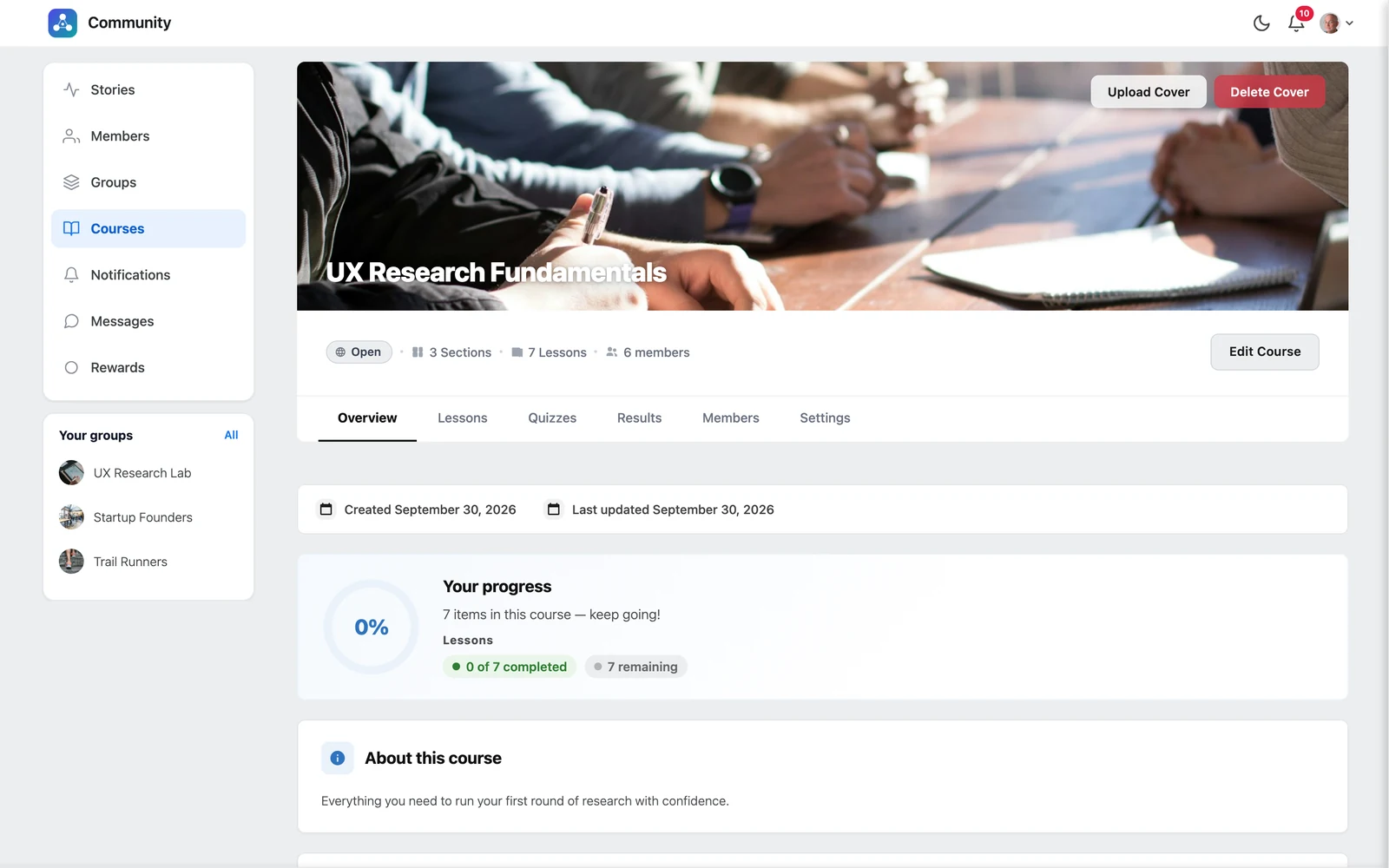
The Overview tab shows your progress, how many lessons are done and how many are left. The Continue learning card on the right of the feed takes you straight back to your next lesson.
Study a lesson #
- Read or watch the lesson.
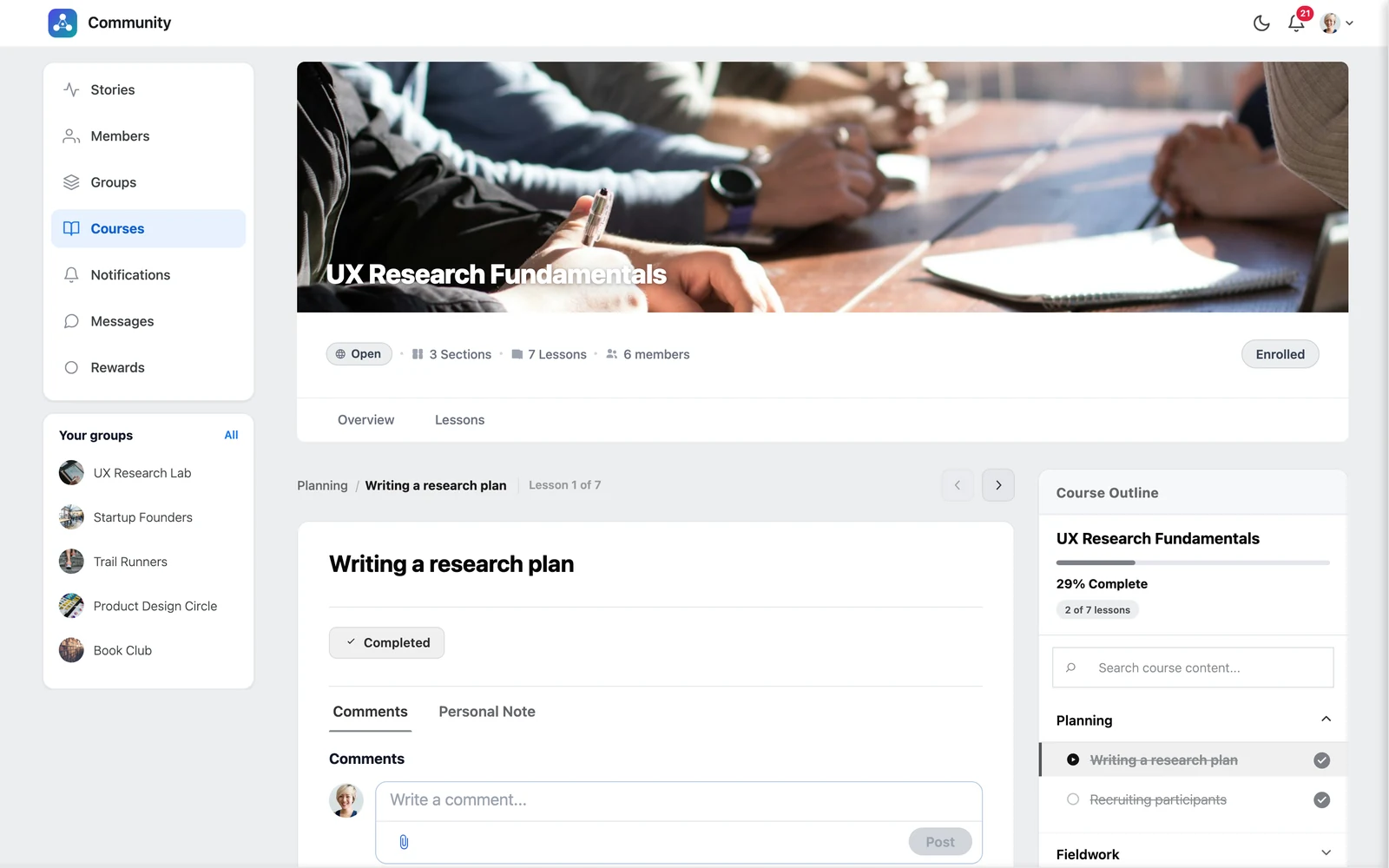
- Click Mark as Complete when you finish. Then click Next.
- The Course Outline on the right shows every lesson, with a tick on the ones you finished.
- The Comments tab lets you ask questions under the lesson.
- The Personal Note tab is your private notebook for this lesson. Only you can see it.
Good to know: Lessons usually open in order. If a lesson says “Complete the previous lessons…”, finish the earlier ones first.
Take a quiz #
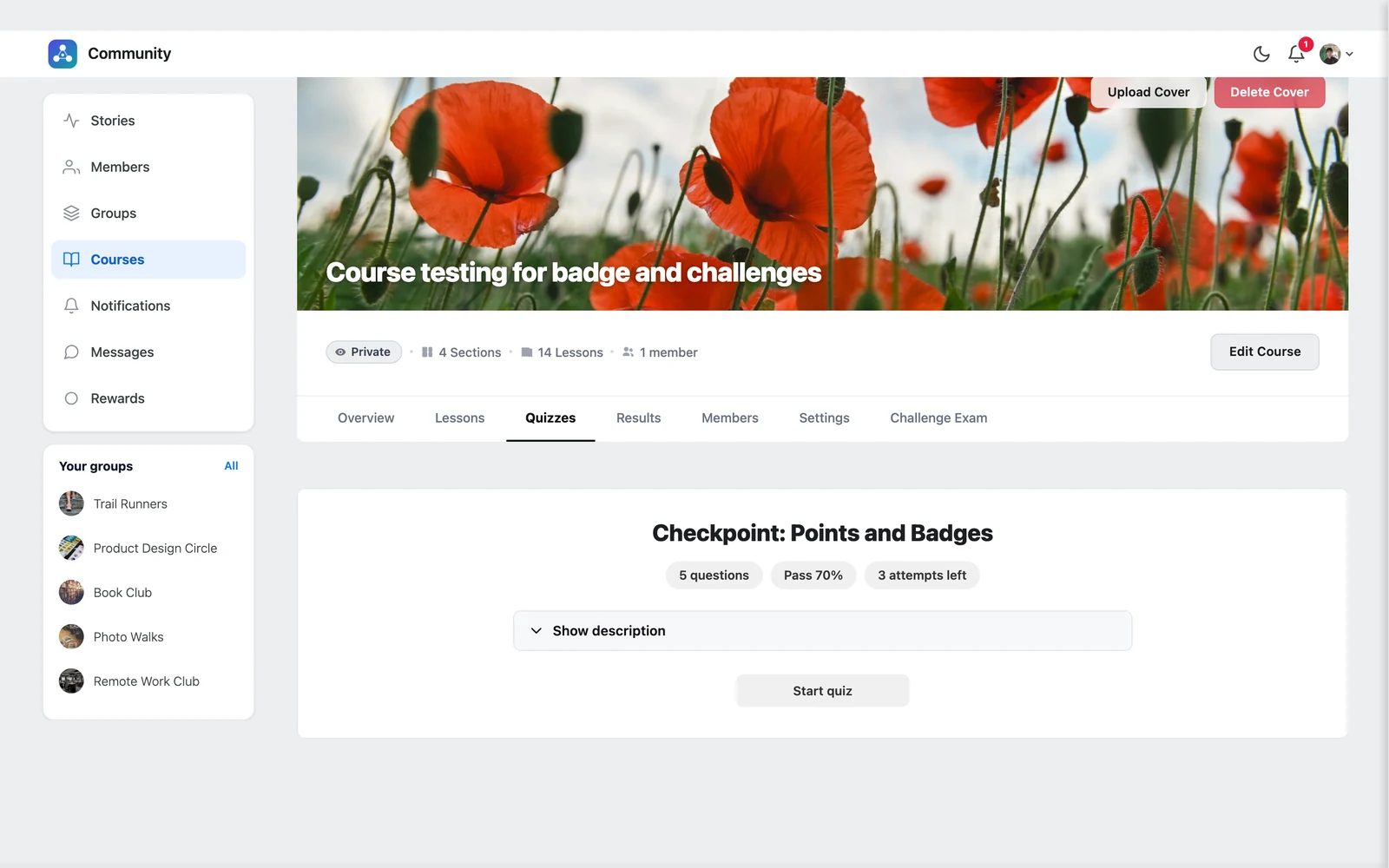
- Click Take quiz in the lesson (or open it from the course).
- You see the number of questions, the pass mark and your attempts left. Click Start quiz.
- Answer the questions and click Submit quiz.
- You see your score and whether you passed. Click Review to see the right answers.
- Didn’t pass? Click Retake quiz if you have attempts left.


